Host your Dub on Baseshift Cloud
With Baseshift Cloud, the infrastructure is fully managed. Get set up in under five minutes with a simple three-step wizard.
Don't have a database handy? Click Use demo database to create a working Dub and explore all of Baseshift's features without connecting your own data.
-
Provide a read-only user
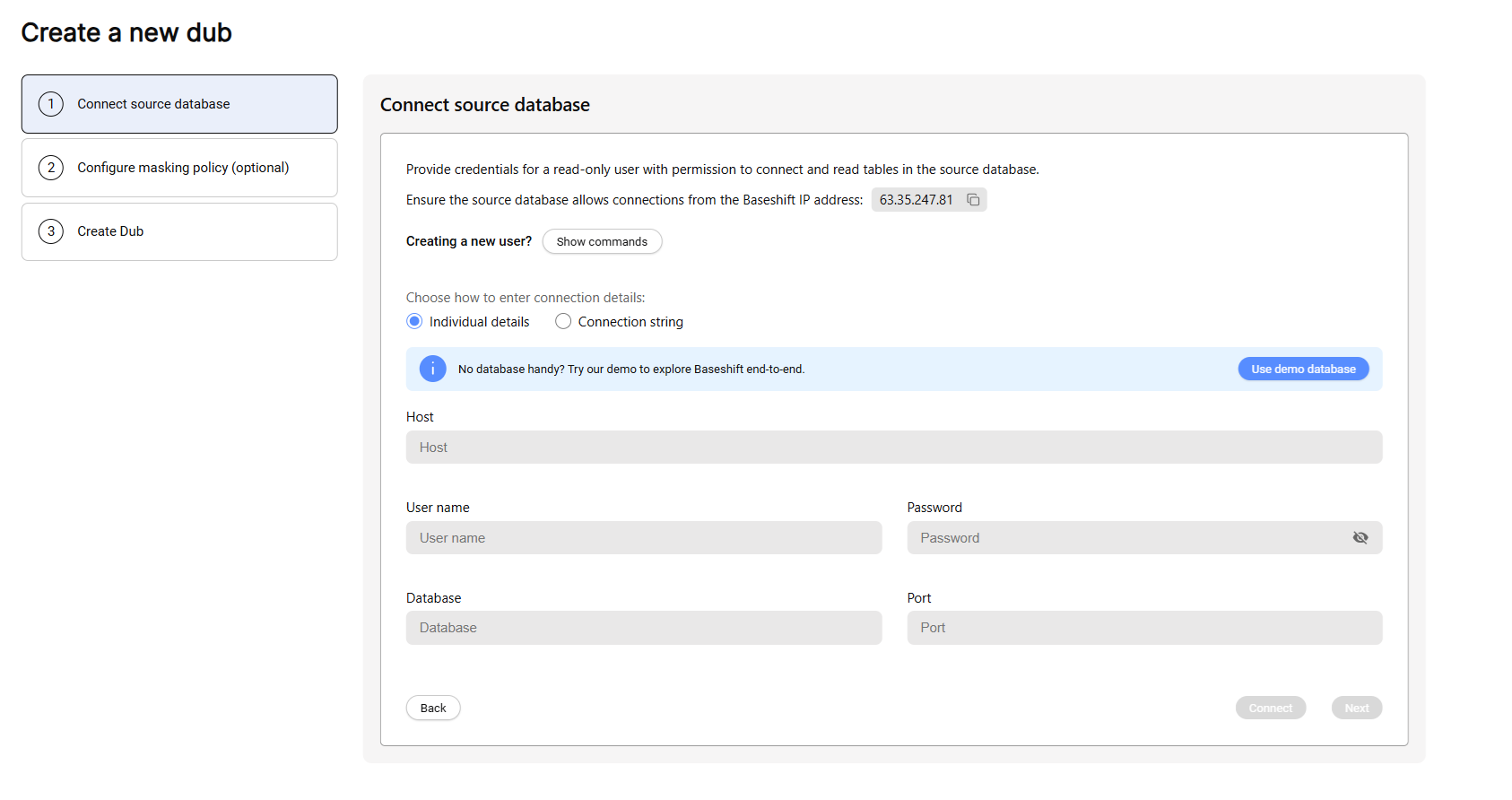
- Baseshift requires a read-only user to connect to your source database. Grant the following permissions to the user:
GRANT pg_read_all_data TO dubhub;
GRANT pg_read_all_settings TO dubhub;
GRANT pg_read_all_stats TO dubhub; - You can provide the credentials as individual fields or paste a connection string.
- Click Connect to run a health check that validates the credentials and database configuration.
- If the connection fails, review the error message and try again.
- If a validation warning appears, click it to view details and suggested fixes. Rerun the health check after addressing the issues by clicking on the Connect button again.
- To limit which databases are copied, select them from the Included Databases dropdown. If a database is missing, grant additional permissions to the read-only user.
infoMake sure your source database allows incoming connections from
63.35.247.81. - Baseshift requires a read-only user to connect to your source database. Grant the following permissions to the user:
-
Set masking and subsetting policies
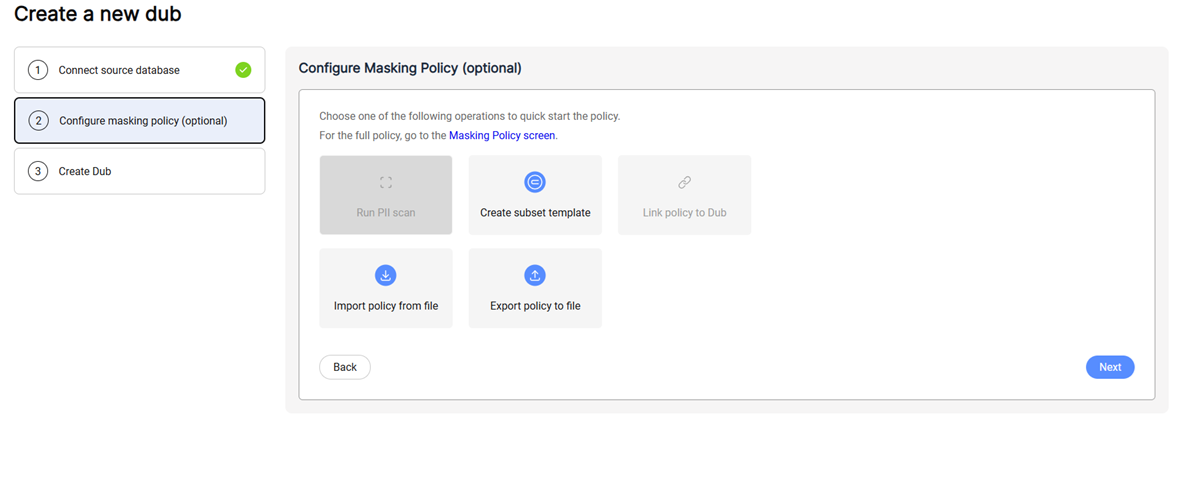
- This step is optional. If you don’t require policies, click Next.
- For more details, see the Subset Policy and Masking Policy documentation.
-
Initialize the database copy
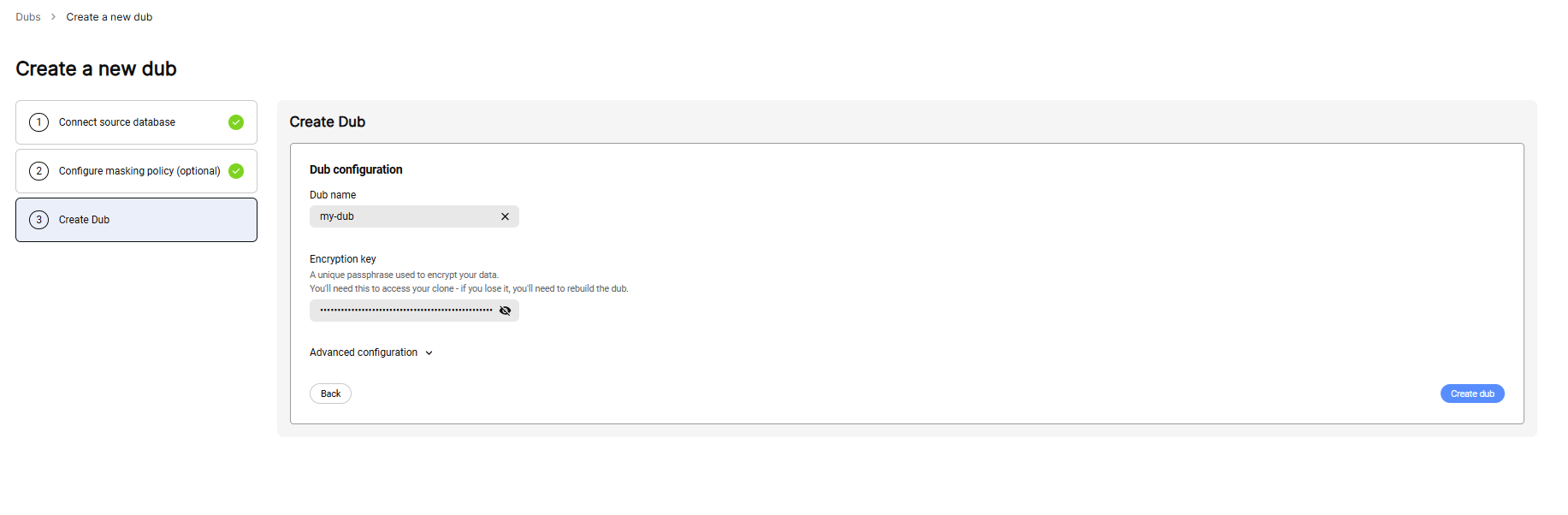
- Provide a meaningful name for the Dub (e.g.,
my-app-dev-env). - Provide an encryption key used to encrypt your database. This key is required to run clones, so make sure to store it securely.
- Click Create to initialize the Dub and begin copying data. Snapshot creation time depends on database size. Progress indicators will show the status.
- Provide a meaningful name for the Dub (e.g.,
Once complete, your Dub will be ready to use, and you can start launching clones.