Subset Policy
Subset policies allow you to limit the data copied into a replica.
Common use cases include:
- Excluding large tables (e.g., audit or history tables) that aren’t needed in development.
- Copying a small number of representative tenants for testing or demos.
- Reducing the dataset to a percentage (e.g., 10%) while preserving referential integrity.
You can configure subset templates, which are reusable rules automatically applied to any newly created databases, schemas, or tables.
You can also define manual rules for specific cases.
Subset policies can be managed through the UI or applied programmatically via the API.
Configuring Subset Templates
To create subset templates:
- Go to the Dubs screen.
- Select your Dub.
- Click Actions → Configure Dub.
- Scroll down to the Policies section.
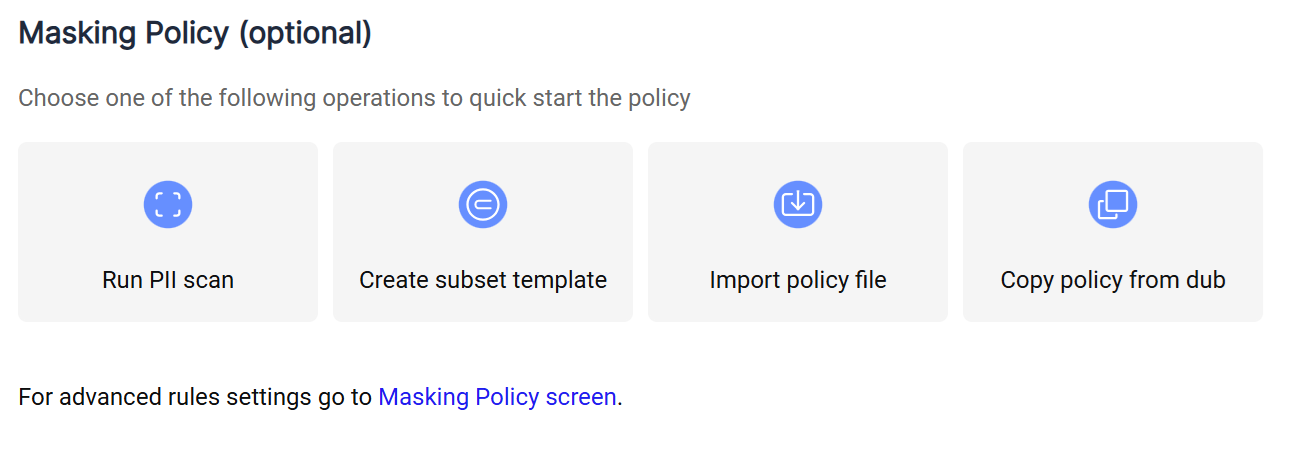
- Click Create Subset Template.
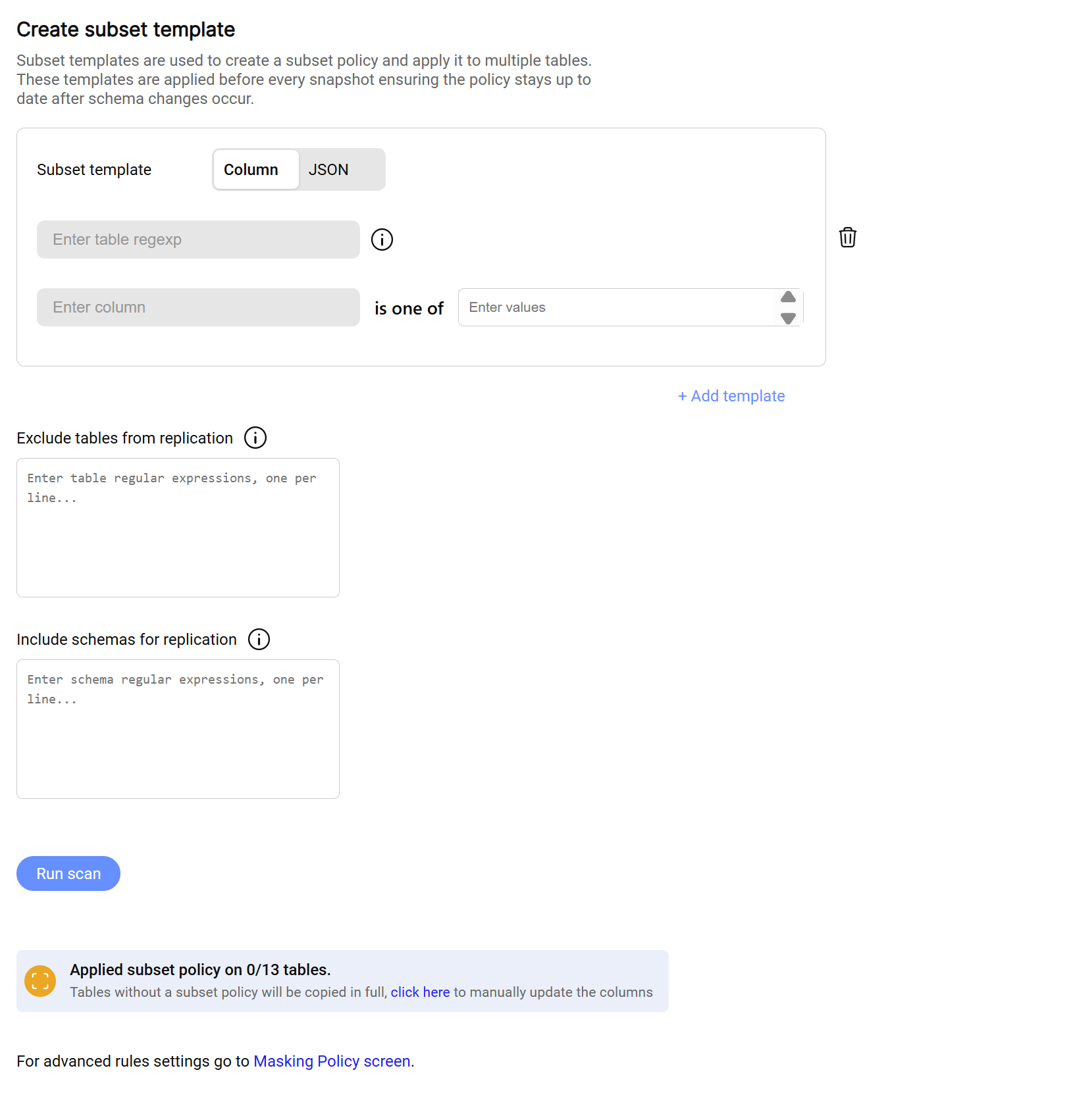
-
Choose the type of template:
- Column template
- Provide a regular expression under Tables to specify which tables the rule should apply to. Leave it empty to apply the rule to all tables.
- Enter the column name to filter on (e.g.,
org_id). - Enter a list of comma-separated values to include in the replica.
- JSON template
- Provide a regular expression under Tables to specify which tables the rule should apply to. Leave it empty to apply the rule to all tables.
- Enter the column name that contains the JSON object (e.g.,
parameters). - Enter the JSON path to filter within that object (e.g.,
org_id). - Enter a list of comma-separated values to include in the replica.
- Custom SQL predicate
- Provide a regular expression under Tables to specify which tables the rule should apply to. Leave it empty to apply the rule to all tables.
- Enter the column name the table should contain.
- Enter the SQL predicate to use as a filter (e.g.,
created_at > NOW() - INTERVAL '30 days').
- Column template
-
To add more templates, click + Add template.
To remove a template, click the trash icon next to it. -
To exclude specific schemas or tables from replication, provide a list of regular expressions (one per line) under Exclude tables from replication (e.g.,
*history*). -
To include only specific schemas or tables, provide a list of regular expressions under Include tables in replication (e.g.,
db.test.*). -
Click Preview template matches to preview where the rules have been applied.
-
To apply policy changes you'll need to restart the Dub. When you're ready with all of the required updates, click Update Dub.
Configuring Manual Subset Rules
You can configure manual subset rules either during the initial setup or after the Dub has been created.
- During setup: This section appears in Stage 6 of the setup wizard.
- After setup: You can access the policy at any time from the Dubs screen.
To create manual subset rules:
-
Go to the Dubs screen.
-
Select your Dub.
-
Click Actions → Configure Policy.
-
In the tree view on the left, select your table.
-
Click the "..." button next to the table name to open the Actions menu.
-
Choose one of the following:
- To exclude the table from replication, click Turn off replication.
- To manually configure a row-level subset rule, click Configure Subset Policy.
- In the panel that opens at the bottom:
- Set the column name to filter on.
- Enter a list of comma-separated values to include in the replica.
- In the panel that opens at the bottom:
-
When done, click Return to Configuration Screen (via the banner at the top).
-
To apply policy changes you'll need to restart the Dub. When you're ready with all of the required updates, click Update Dub.