Configuring Masking Rules
With Baseshift Dubhub, you have full control over your masking policy. You can review and customize the masking behavior for each column, ensuring sensitive data is handled appropriately for development, testing, or compliance purposes.
Viewing and Editing the Masking Policy
To view or modify the masking policy:
-
Go to the Dubs screen.
-
Select your Dub.
-
Click Actions → Configure Policy.
-
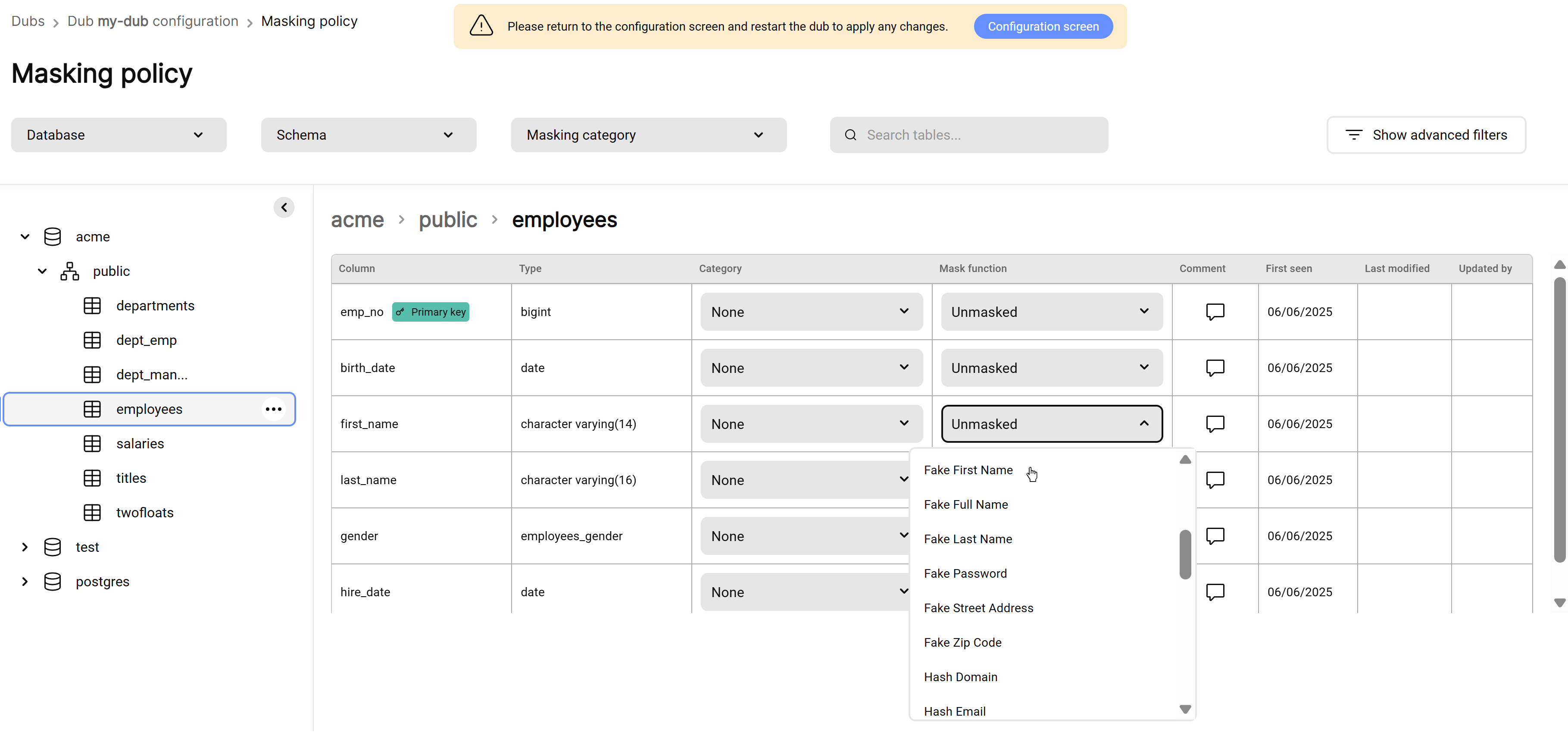
On the left side, you’ll see a tree view of your table hierarchy.
- Use the filters at the top to search by schema, database, or table name.
- Click Show advanced filters to reveal more options like data type and masking function.
-
Selecting a table in the tree view will display its columns on the right.
-
To set a masking rule:
- Use the dropdown next to a column name to choose a masking function.
- Optionally, set a data category to associate with the function.
- All changes are audited - see who last updated a rule in the Updated By column.
-
When done, click Return to Configuration Screen (via the banner at the top).
-
To apply masking policy changes, you'll need to restart the Dub.
Once you're ready, click Update Dub to apply your updates.