PII Scanner
The PII Scanner helps you quickly identify and protect sensitive data in your databases by automatically detecting columns that may contain Personally Identifiable Information (PII). It also suggests masking rules based on what it finds. This enables you to build a complete and consistent masking policy with minimal manual effort.
How It Works
The scanner runs on the connector and analyzes your data using a combination of, column names, data types, and sample content - including nested JSON structures and free-text fields.
This allows it to detect PII even when it’s not obvious from the column name alone.
Baseshift includes built-in detection for many common PII types and other known data categories, such as:
- Names
- Email addresses
- Phone numbers
- Physical addresses
- IP addresses
- Dates
- Hashed columns
- And more
New categories are added regularly to keep pace with evolving data privacy requirements.
PII Templates
When the scanner identifies sensitive columns, it suggests masking rules based on PII templates. These templates define how each data should be masked across your databases.
For example:
- Columns containing emails can be masked with randomized, valid-looking email addresses.
- Text fields can be masked with random text of the same length.
- Dates can be replaced with either random or constant values.
You can customize these templates to match your organization's compliance, privacy, or testing requirements.
To configure PII templates, go to Masking Policy → Policy Suggestions:
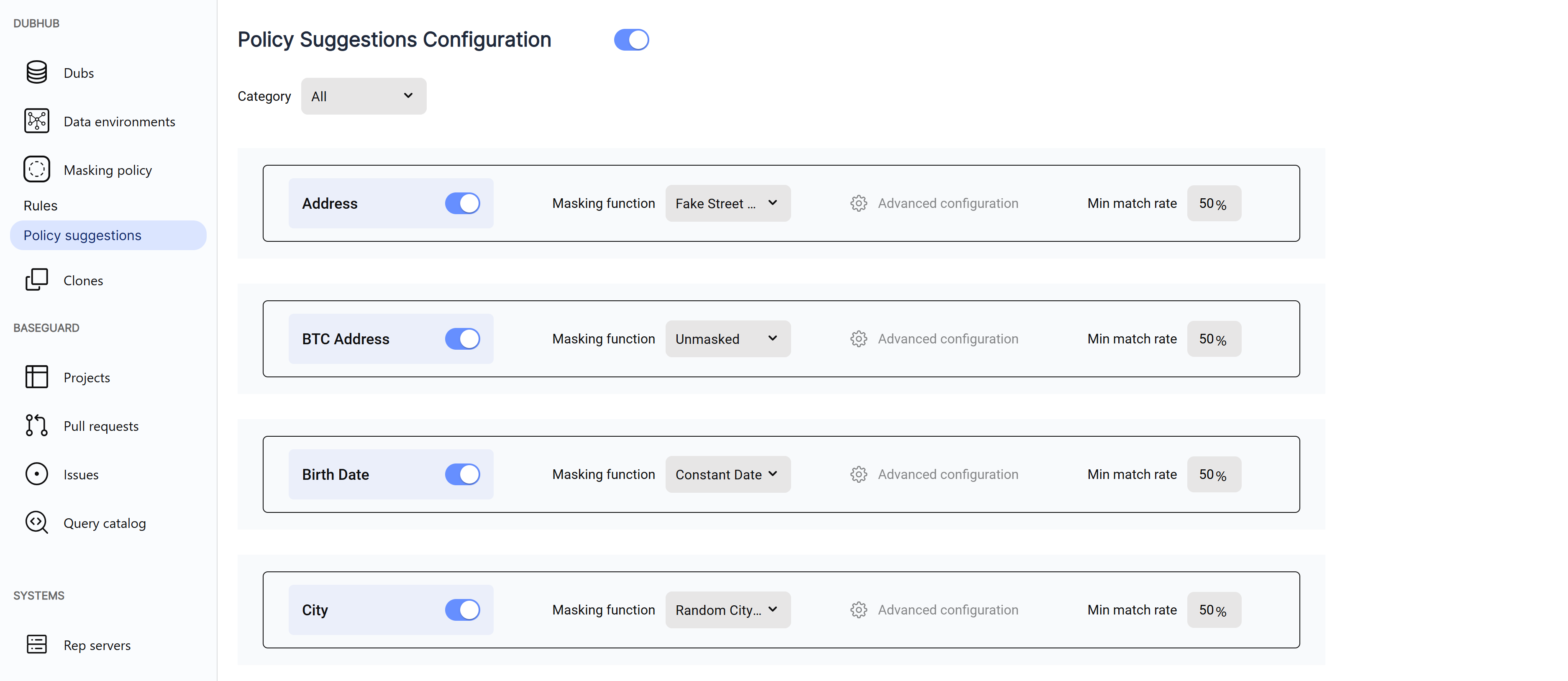
From this screen, you can:
- Disable masking suggestions entirely by toggling the switch next to Policy Suggestions Configuration. Column detection will continue, but no masking rules will be auto-suggested.
- Turn off detection for specific categories (e.g., emails or names) by toggling the switch next to each category name.
- Change the masking function applied to a category by selecting a new option from the Masking function dropdown.
- Adjust the Min match rate to control how strictly a column must match a category before it's flagged.
For example, if a column named"contact"contains email addresses in more than 50% of sampled rows, it will be flagged as an email column.
Running the PII Scanner
You can run the PII scanner either during the initial setup or after the Dub has been created.
- During setup: This section appears in Stage 6 of the setup wizard.
- After setup: You can access the policy at any time from the Dubs screen.
To trigger a scan:
-
Go to the Dubs screen.
-
Select your Dub.
-
Click Actions → Configure Dub.
-
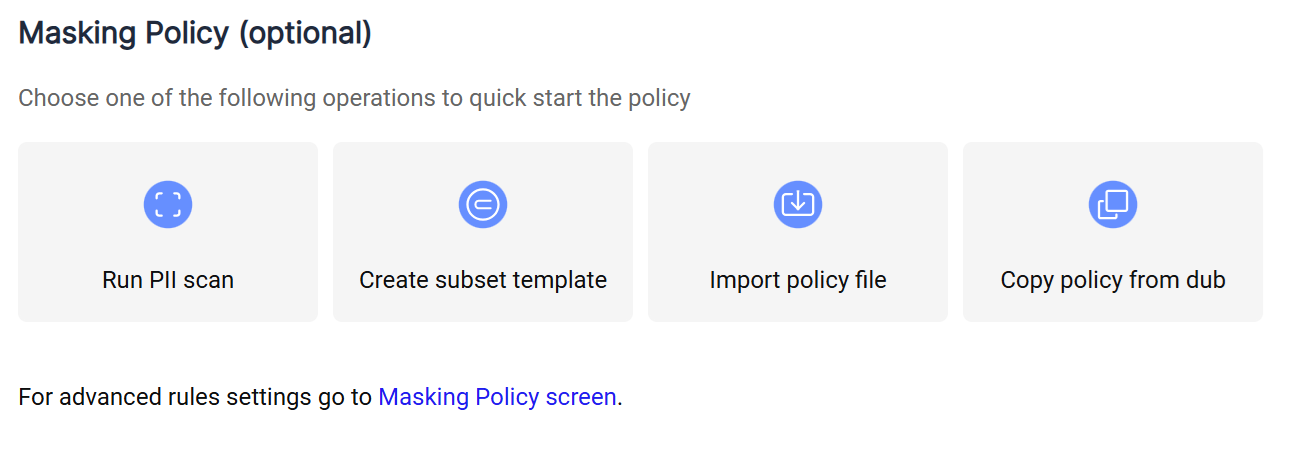
Scroll down to the Policies section.
-
Click Run PII Scan.
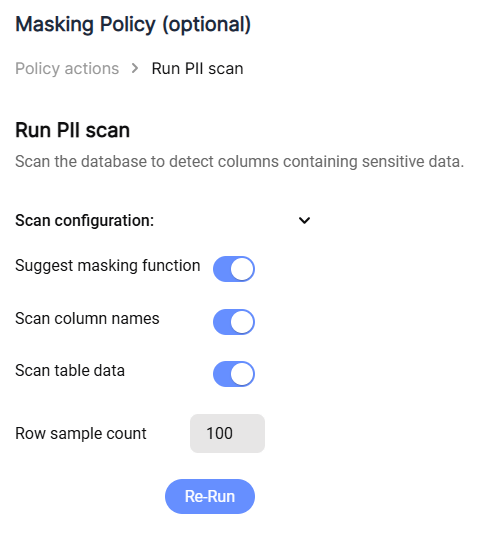
-
Click Run Scan in the dialog to start the scan.
-
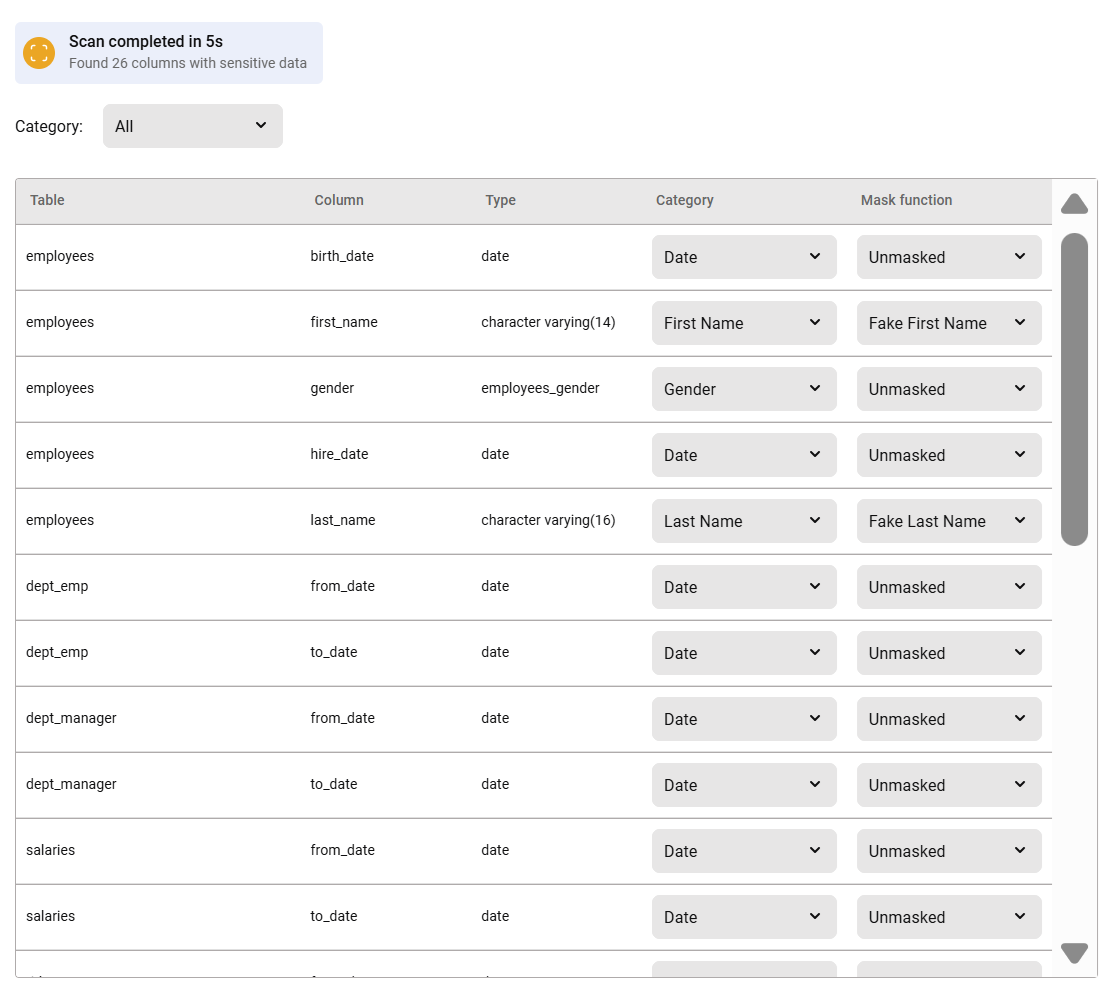
Once the scan is complete, you’ll see a table with the detected columns and suggested masking rules.
-
Review the results:
-
Use the Category filter to focus on specific data types.
-
To edit a specific rule, click the Category or Masking Function dropdown in the table.
-
If a category produces false positives or needs adjustment, disable it or modify the PII template, then click Run Scan again to update the results.
Note: If a category is enabled but its masking function is set to Unmasked in the PII template, the scanner will still detect and list matching columns - however, no masking rule will be applied.
-
For more advanced configuration, click Go to the Masking Policy Screen.
-